
Veterinarians · full guide · 6 min
How do I offer online appointment booking to my clients?
Short answer : Create your profile, enter your hours and the duration of each type of consultation: slots are generated automatically and clients book 24/7. You then follow each appointment in your calendar.
Offering online booking means setting three things: when you can be booked, how long each consultation lasts, and which rules apply to cancellations. Everything is configured in your account, and owners only see the slots that are genuinely open. Here is the full journey, with screens from the app.
And in Vetzy?
24/7 online appointment booking is included in the public Vetzy profile. Slots are generated from your hours and durations, with appointment statuses and owner notifications.
Start from your hours
Your regular availability is the basis. Leave, training or long surgeries are blocked separately.
One duration per consultation
Vaccination, follow-up consultation, surgery: each type has its own duration, so slots are realistic.
Follow the statuses
Pending, confirmed, in progress, completed, cancelled, no-show: the state of each appointment stays clear.
Open your online calendar in 5 settings
Screenshots of the app with demo data.
-
Step 1 · Vet
Enable online booking
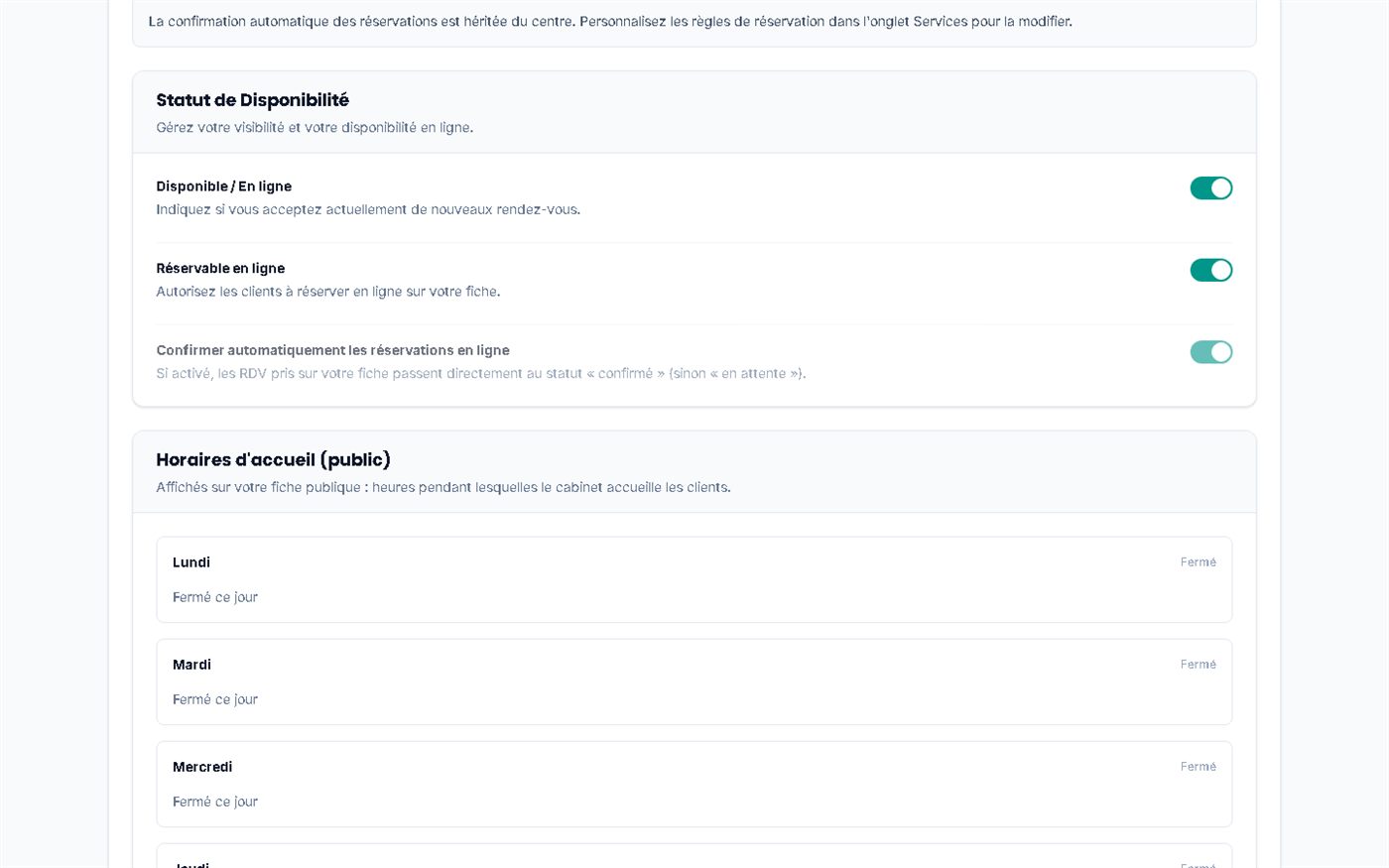
AvailableIn your profile, the availability tab groups the three switches that control your visibility: available, bookable online, and automatic confirmation of bookings. Without automatic confirmation, appointments arrive as "pending" and you approve them.
A profile can stay in "directory" mode (contact details visible, no booking). Bookable mode is subject to validation by Vetzy.
Markers on the screenshot
- 1Available / online: accept new appointments
- 2Bookable online: allow booking from your profile
- 3Automatic confirmation, otherwise "pending" status
Screenshots of the app (demo data)
-
Step 2 · Vet
Define your booking windows
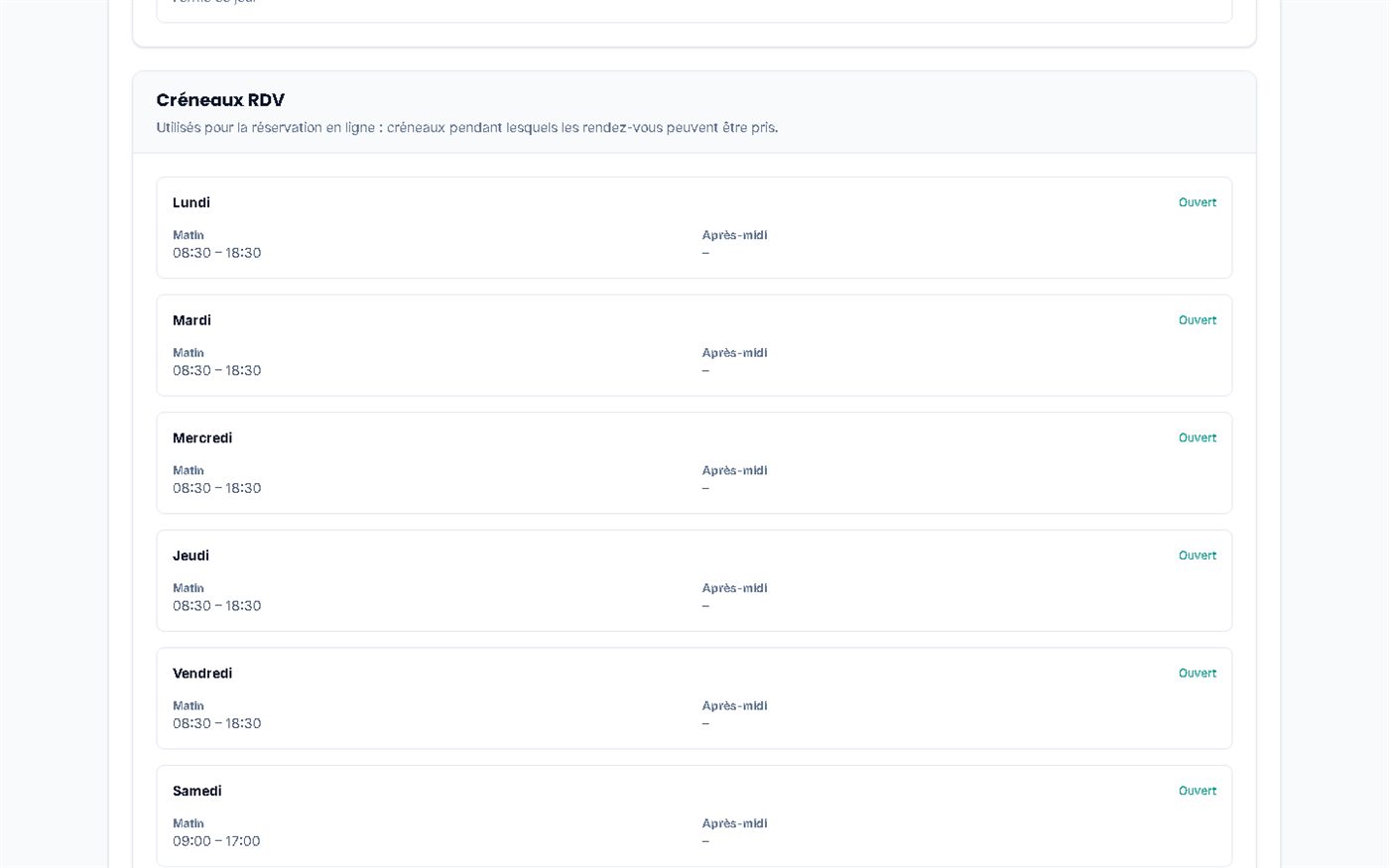
AvailableFor each day, you set the morning and afternoon windows during which an appointment can be booked. These windows are separate from the opening hours shown on your public profile.
Markers on the screenshot
- 1Slots used only for online booking
- 2Each day can be open or closed
- 3Morning and afternoon window, for each day
- 4Different hours on Saturday
Screenshots of the app (demo data)
-
Step 3 · Vet
Set durations, notice periods and the gap between appointments
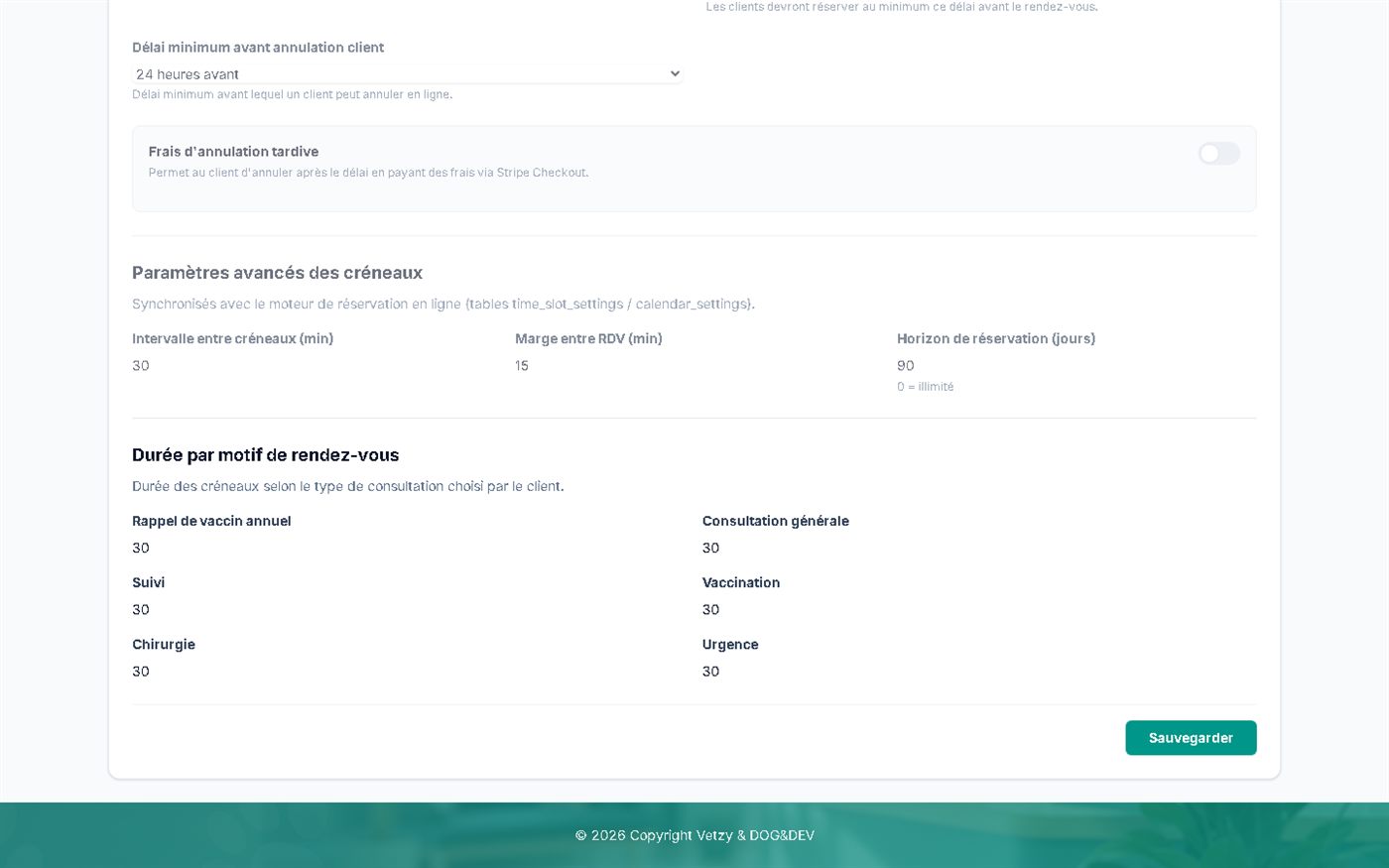
AvailableYou set the default slot duration, the minimum booking notice, the booking horizon and the gap between two appointments. Each type of consultation has its own duration.
If you are attached to a centre, some values are inherited from the centre and shown as read-only.
Markers on the screenshot
- 1Interval between slots, in minutes
- 2Gap between two appointments
- 3Horizon: how many days ahead people can book
- 4Duration specific to each reason (vaccination, follow-up, surgery, emergency…)
Screenshots of the app (demo data)
-
Step 4 · Vet
Set your cancellation rules
AvailableYou choose the minimum notice a client must give to cancel online, and the minimum notice before booking. An option allows late-cancellation fees, paid by the client through Stripe Checkout.
Check with your professional body what is permitted before enabling fees.
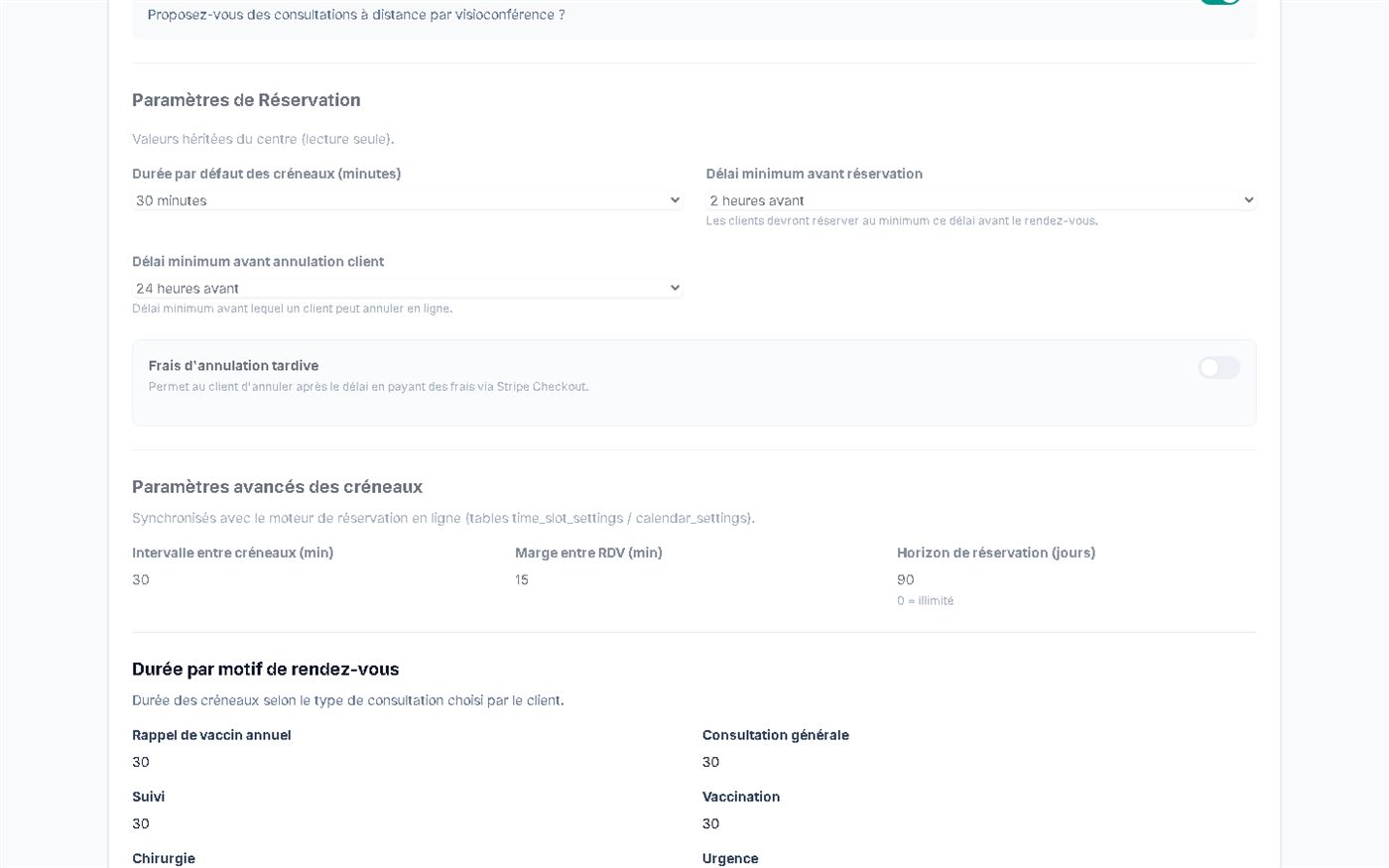
Markers on the screenshot
- 1Default slot duration
- 2Minimum notice before booking (here 2 hours)
- 3Minimum notice for client cancellation (here 24 hours)
- 4Late-cancellation fees, can be enabled via Stripe Checkout
Screenshots of the app (demo data)
-
Step 5 · Vet
Follow each appointment in the calendar
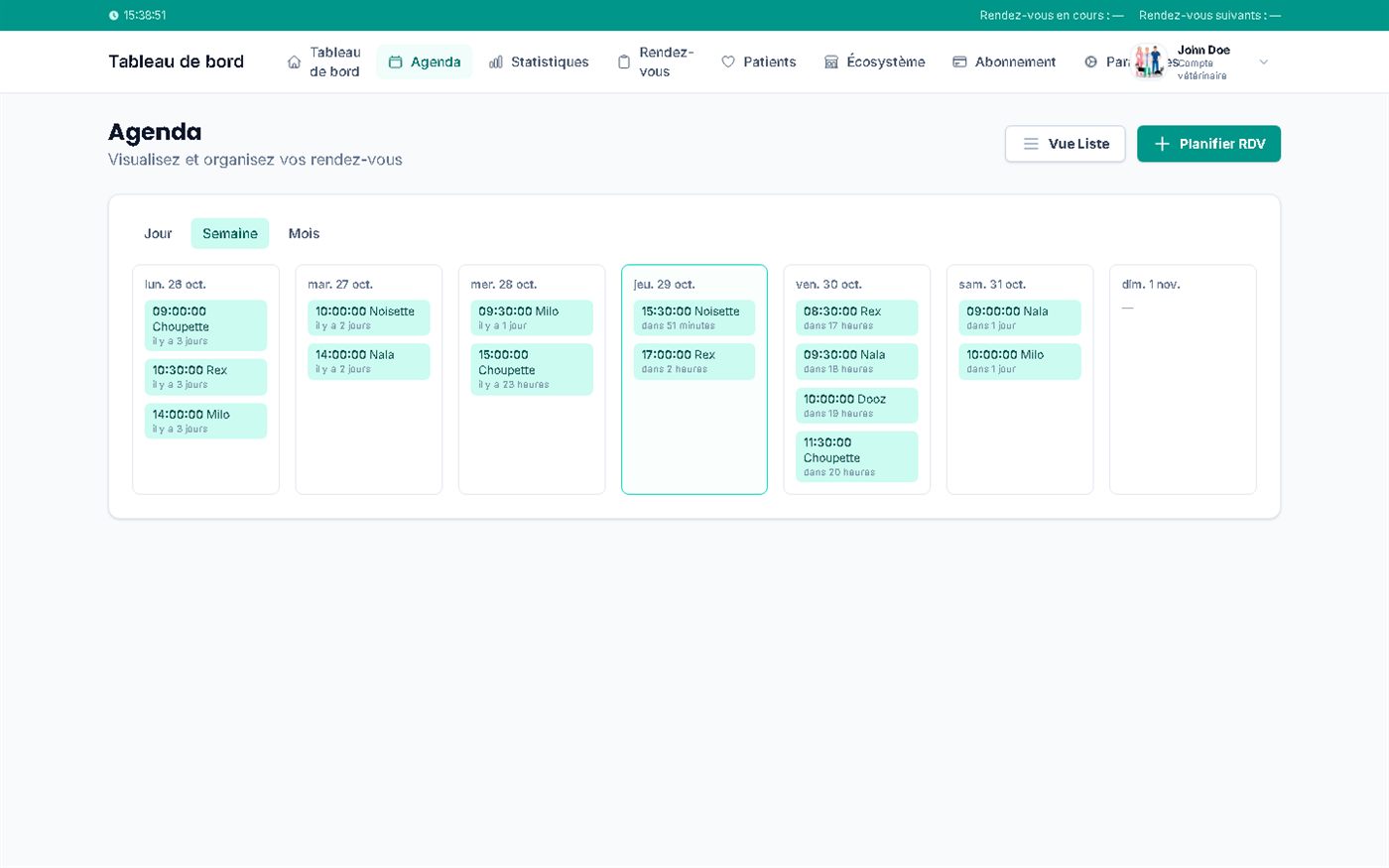
AvailableAppointments booked online arrive in your calendar, in day, week or month view, with a list view. You can also schedule an appointment yourself. The owner receives an email on confirmation and on cancellation; a change of time does not send a notification: let the client know.
Markers on the screenshot
- 1Day, week or month view
- 2List view
- 3Schedule an appointment manually
- 4The current day is highlighted, with the relative time of each appointment
Screenshots of the app (demo data)
Dashboard
Your dashboard in the morning
When you open it, you see requests to approve, today's appointments, occupancy and medical reminders, without digging through several screens.
- Pending requests only appear if automatic confirmation is turned off.
- Today's occupancy is calculated from your slots and your appointments.
- Scheduling an appointment is available from the dashboard.
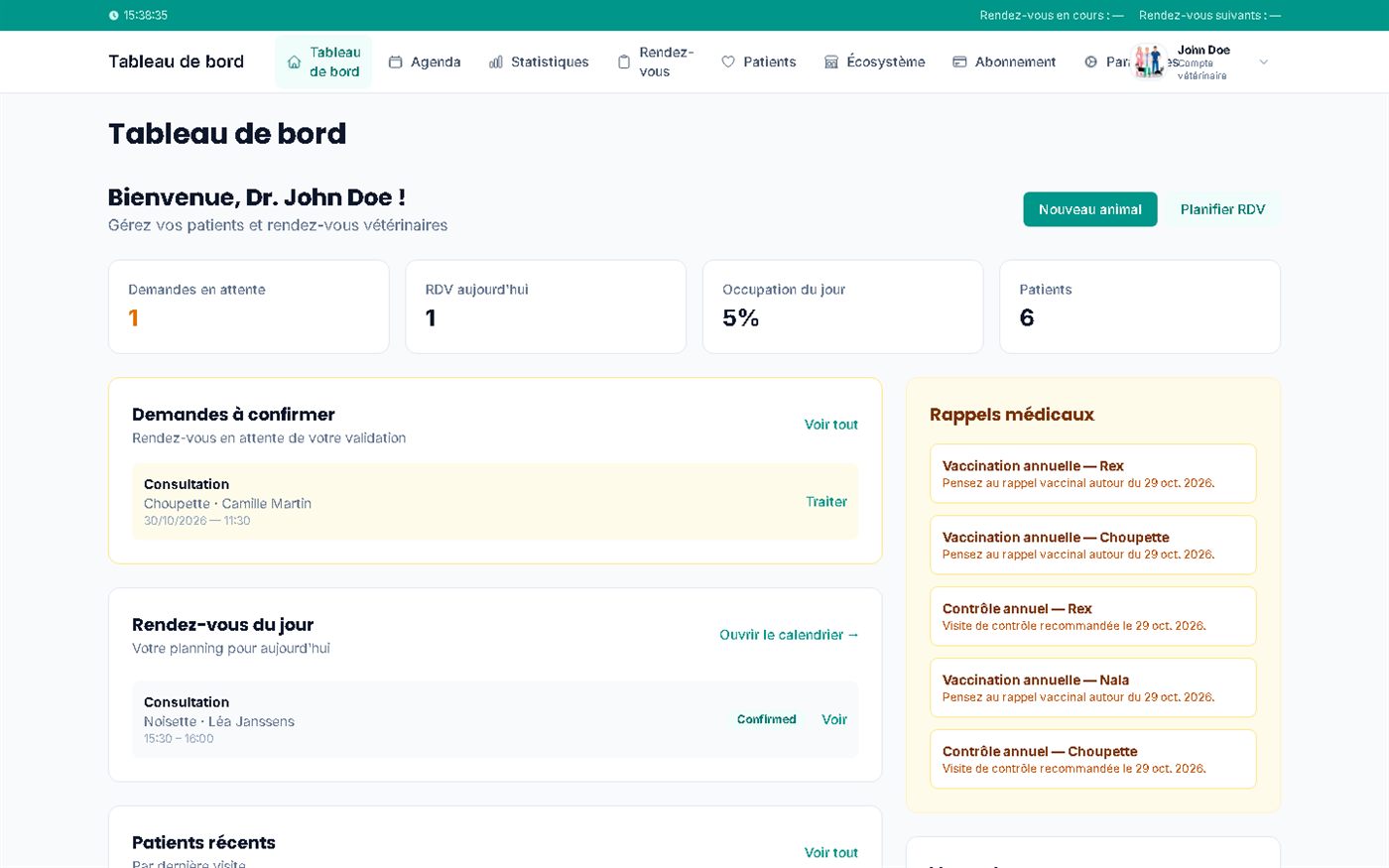
Markers on the screenshot
- 1Pending requests, today's appointments, today's occupancy, patients
- 2Requests to confirm: handle them in one click
- 3Today's appointments with access to the calendar
- 4Medical reminders linked to your patients
Screenshots of the app (demo data)
Paper or phone diary versus the online calendar
| Today | With Vetzy | |
|---|---|---|
| Taking appointments | Only during opening hours, by phone. | At any hour, within the windows you have opened. |
| Consultation length | Estimated on each call. | One duration per reason, set once. |
| Cancellations | Handled by hand, case by case. | Configurable cancellation notice, with optional fees. |
| Follow-up | Several sources to cross-check. | A single calendar: day, week, month and list. |
Actual time savings depend on how you work: no figure is claimed here.
A typical day with online booking
Example with demo data: a general-practice vet who opens slots from Monday to Saturday, with automatic confirmation.
-
Day before, 22:10
An owner books
They choose "annual vaccine booster" and Friday at 10:00. The slot disappears from the free times.
-
Morning, 08:15
You open the dashboard
Today's appointments, pending requests and medical reminders are all together.
-
10:00
Consultation
You open the patient's record from the calendar.
-
End of day
You add an appointment
You schedule a follow-up manually: it appears in the calendar and the client is notified.
Transparency
What exists today
-
Available
Online booking, slots, durations by reason, notice periods, horizon
Configurable from your profile, with optional automatic confirmation.
-
Available
Day, week, month and list calendar
With manual scheduling of an appointment.
-
Partial
Late-cancellation fees
The option exists (payment via Stripe Checkout); it is off by default and inherited from the centre if you belong to one.
-
Partial
SMS reminders
An email is sent on confirmation and on cancellation. Reminder settings (email, SMS) exist in the profile, but automatic sending of a reminder before the appointment is not confirmed; SMS (Twilio) can be enabled by Vetzy support on request.
Frequently asked questions
Do I need to install anything?
No, everything is managed online from your Vetzy account.
Can I approve each request?
Appointments go through statuses (pending, confirmed…) that you follow in the calendar.
What does the client see when booking?
They see the free slots on your profile and receive notifications about their appointment.
How long does it take to set everything up?
The five settings above are in your profile. The time depends on the number of consultation types; we help you during the demo.
Can my clients cancel on their own?
Yes, online, up to the minimum notice you set. After that, they are asked to phone the practice.
Can I block my leave?
Yes: the availability area manages absences, for a specific date or every week. An absence is entered day by day; the designated replacement is reserved for centres. Appointments already booked are neither cancelled nor notified.
Related questions
Answers that complete this one, from your point of view and from the other side of the appointment.